
TeraBox Photo Backup: Best Practices to Keep Every Photo Safe (2026)
TeraBox photo backup is one of the easiest ways to keep every picture safe without paying for extra phone storage. With generous cloud space and built-in backup tools, TeraBox lets you save photos in full quality, organize them into albums, and get them back even if your phone is lost. This guide covers the best practices to get the most out of it.

Why TeraBox Photo Backup Matters
Phones fill up fast — 4K videos, burst shots, and years of camera roll add up. TeraBox solves this with a large free storage tier and features built specifically for media:
- Big free storage — far more room than most default cloud plans
- Automatic backup — camera photos upload on their own
- Original quality — no forced compression on your memories
- Access anywhere — phone, tablet, and the TeraBox web version
For a full breakdown of plans and limits, see our TeraBox free vs premium comparison. If you are comparing providers, our TeraBox vs Google Drive guide covers photo features head-to-head.
Turn On Automatic TeraBox Photo Backup
The single most important step for TeraBox photo backup: let TeraBox back up your camera roll by itself.
- Open the official TeraBox app and sign in to your account
- Go to Settings → Backup (or the backup section in your profile)
- Enable “Automatic photo backup” — the app will start syncing your camera photos
- Choose backup source — camera roll, screenshots, or specific folders
- Set network preference — use “Wi-Fi only” so backups don’t eat mobile data
- Turn on “charging only” if you want backups to run while the phone charges

Once enabled, every new photo you take gets a safe copy in the cloud within minutes. If you also share big media often, our guide to sharing large video files with TeraBox is worth a read.
Keep Original Quality, Not Compressed Copies
A TeraBox photo backup is only as good as its quality. Compressed copies look fine on a phone screen but fall apart when printed or cropped. Best practices:
- Check the quality setting — pick “Original” or “Full quality” in backup options instead of data-saving modes
- Watch large videos — 4K clips are the biggest storage hogs; back them up on Wi-Fi with original quality, then free phone space
- Don’t double-compress — avoid apps that shrink photos before they reach TeraBox
- Verify after upload — open a few backed-up photos in the app and zoom in to confirm they are sharp
Organize Photos into Albums and Folders
A backup you can’t browse is barely a backup. Spend ten minutes organizing and future-you will thank you:
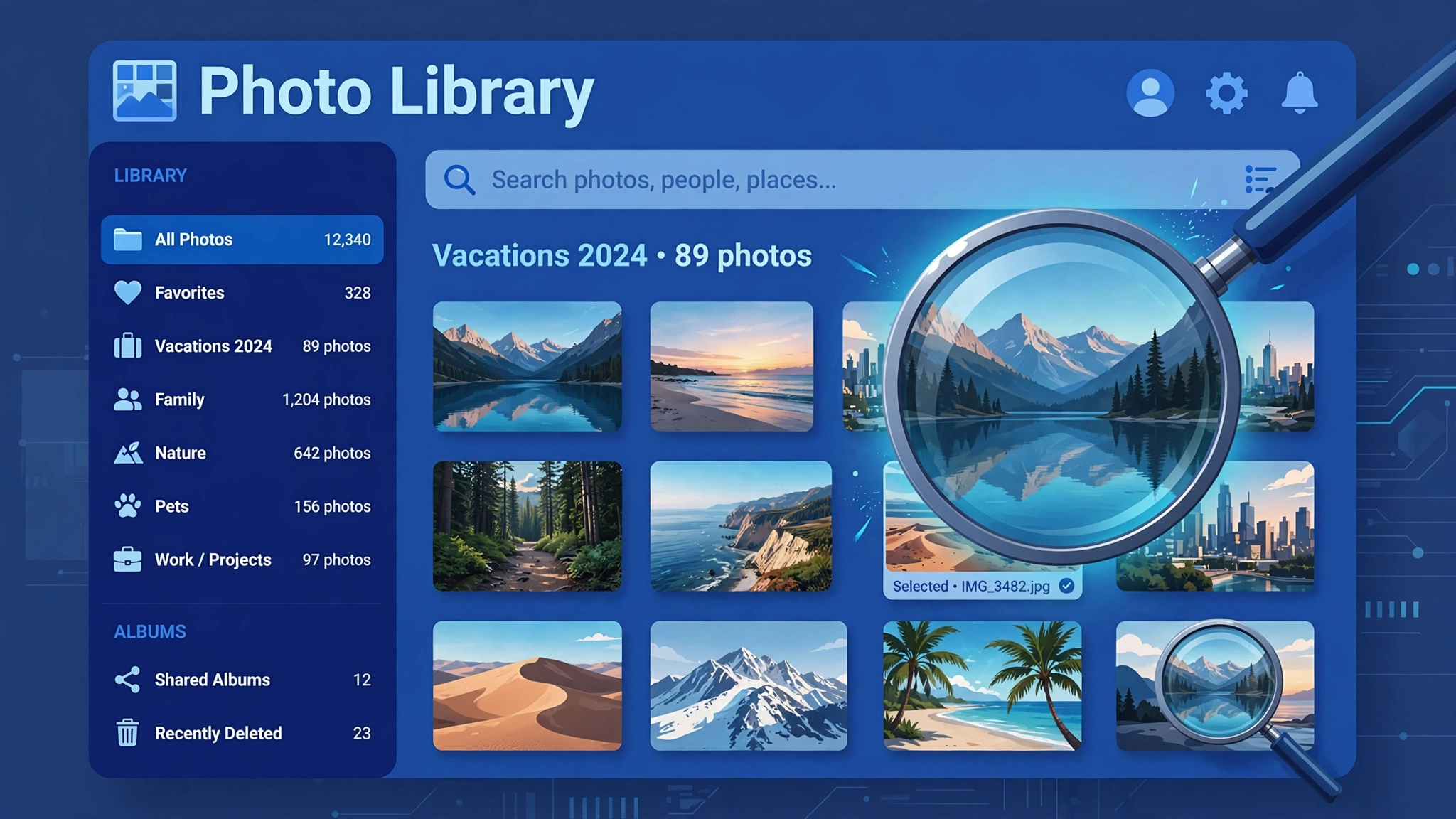
- Create folders by year and event — e.g. Photos/2026/Family-Trip
- Make albums for occasions — weddings, vacations, school events
- Favorite your best shots — mark favorites so highlights are one tap away
- Delete duplicates in the cloud, not on the phone first — keep the phone copy until the cloud copy is verified
- Use search — TeraBox’s search helps you find photos by date and name quickly
Good organization also makes sharing easier — our guide to sharing large files with TeraBox shows how to send whole albums securely.
Protect Private Photos with a Personal Vault
Not every photo is for every eye. TeraBox’s Personal Vault (private space) adds a password-protected area for sensitive pictures:
- Move private photos into the vault — they disappear from the main gallery view
- Set a separate lock — PIN or password different from your login
- Back up the vault too — a vault is for privacy, not a reason to skip backups
- Never share vault links publicly — for private sharing, use password-protected share links instead
TeraBox Photo Backup: Best Practices Checklist
| Practice | Why it matters | How often |
|---|---|---|
| Auto backup ON | No photo depends on your memory | Set once |
| Wi-Fi + charging only | Saves battery and mobile data | Set once |
| Original quality | Photos stay print-ready | Set once |
| Album organization | Find any photo in seconds | Monthly |
| Duplicate cleanup | Reclaim gigabytes of space | Quarterly |
| Trash check | Recover accidental deletes within the retention window | As needed |
| Download a yearly archive | A second copy is real insurance | Yearly |
Recover Deleted Photos from Trash
Deleted something by mistake? Act fast — your TeraBox photo backup keeps deleted files in the trash for a limited time:
- Open the Trash/Recycle Bin in the app or web version
- Find the deleted photos — they are listed with deletion dates
- Select and Restore — they return to their original folders
- Download important ones locally — a second copy on an external drive is cheap insurance
The trash is a safety net, not a plan. Combine it with automatic TeraBox photo backup and a yearly downloaded archive for real peace of mind.
Frequently Asked Questions
What is TeraBox photo backup?
TeraBox photo backup automatically uploads your phone’s camera photos to TeraBox cloud storage, keeping safe copies in original quality that you can access from any device.
Does TeraBox compress my photos?
TeraBox offers quality options in its backup settings. Choose the original/full-quality option to keep photos uncompressed and print-ready.
How do I turn on automatic photo backup in TeraBox?
Open the official TeraBox app, go to Settings → Backup, enable automatic photo backup, choose your folders, and set Wi-Fi-only uploads.
Can I organize backed-up photos into albums?
Yes. You can create folders and albums in TeraBox, group photos by event or year, mark favorites, and use search to find photos quickly.
Can I recover deleted photos from TeraBox?
Yes. Deleted photos go to the Trash/Recycle Bin for a limited retention period, where you can select and restore them to their original folders.
Is there a private area for sensitive photos?
Yes. TeraBox’s Personal Vault is a password-protected private space where you can store photos separately from your main gallery.
Related Guides
- TeraBox Free vs Premium: Full Comparison
- TeraBox vs Google Drive: Full Comparison
- How to Share Large Files with TeraBox
- Share Large Video Files with TeraBox
- TeraBox Web Version Guide
- TeraBox Password-Protected Share Links
Final Thoughts on TeraBox Photo Backup
TeraBox photo backup only works when it’s automatic, full-quality, and organized. Turn on auto backup with original quality, sort photos into albums, use the Personal Vault for private shots, and download a yearly archive as insurance. Set these practices up once and your memories stay safe even if your phone doesn’t. For more ways to get the most out of TeraBox, see the TeraBox Mod APK features overview.