How to Share Large Files with TeraBox in 2026
Ever tried to email a 4K video only to be told the file is too large? Email attachments top out at 25 MB, and messaging apps squeeze your videos into blurry, compressed copies. If you want to share large files with TeraBox, there is a much better way: upload once to your free cloud storage, create a shareable link, and send files of any size in their original quality. This guide walks you through the whole process step by step — no tech skills required.
Why Use TeraBox for Sharing Large Files?
TeraBox gives every user 1 TB of free cloud storage, which makes it a natural fit for sending big files. Instead of fighting attachment limits, you upload the file once and share a simple link:
- No email-style size limits: share files of any size through a link instead of an attachment.
- Original quality, always: no compression like messaging apps apply to videos and photos.
- Easy for recipients: anyone with the link can preview or download in a browser — no TeraBox account needed.
- Share single files or whole folders: perfect for video projects, photo albums, and work documents.
- You stay in control: links can be password-protected, set to expire, or disabled at any time.
Before sharing, it also helps to keep your cloud tidy — see our guide to freeing up storage on Android phones — and to know how much cloud storage you actually need.
How to Share Large Files with TeraBox: Step-by-Step
Follow these four steps in the app or the web version (official TeraBox site):
Step 1: Upload Your Files to TeraBox
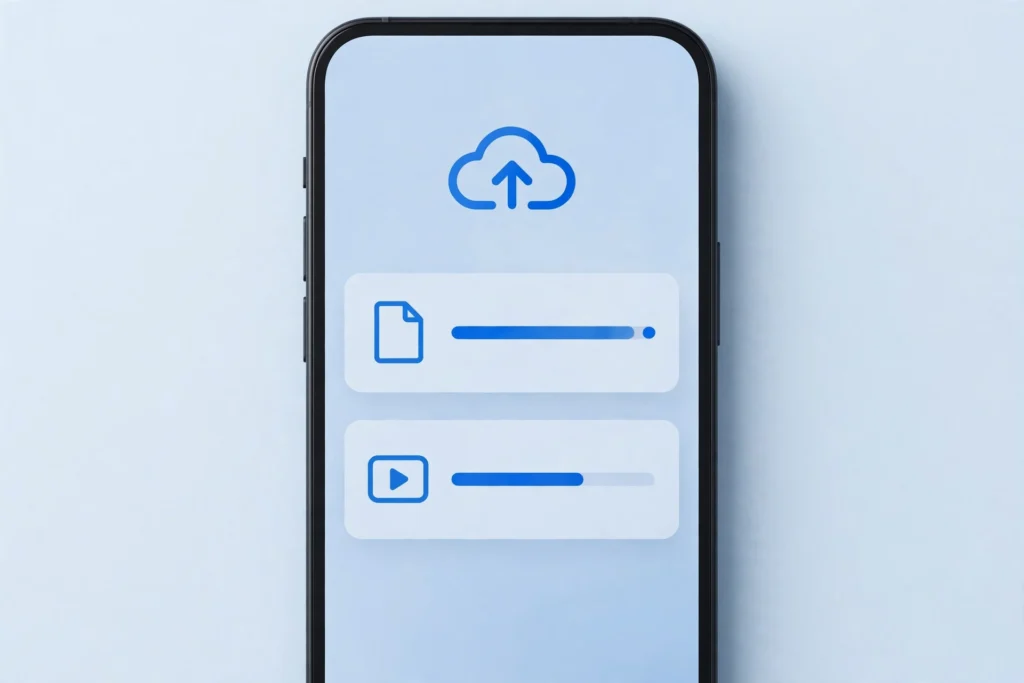
Open the TeraBox app or the web version, sign in, and tap the upload button. Select the files or folders you want to share — videos, photos, documents, audio, and archives are all supported. For uploads over a few hundred MB, connect to Wi-Fi and keep the app open until the progress bar finishes.
Step 2: Select the File You Want to Share
Go to “My Files” and long-press (mobile) or right-click (web) the file or folder. Sharing an entire folder is handy when you are sending a whole project, because the recipient gets everything in one place.
Step 3: Create a Secure Share Link
Tap Share and choose Create link. This is where you can share large files with TeraBox securely: set a password so only people with the code can open it, and pick an expiry date (for example, 7 or 30 days) so the link stops working automatically. Copy the generated link.
Step 4: Send the Link to Anyone
Paste the link into an email, chat message, or social post. The recipient opens it in any browser and downloads the file — no account or app install required. If you set a password, send the password in a separate message for extra security.
Tips to Send Large Files Faster
Big uploads go smoother with a little preparation:
- Use Wi-Fi, not mobile data, for uploads over a few hundred MB — it is faster and saves your data plan.
- Upload overnight for very large folders (10 GB+). TeraBox resumes uploads if the connection drops, so an interruption is not a disaster.
- ZIP folders with hundreds of small files before uploading — fewer individual files means a smoother, faster upload.
- Keep the app in the foreground on your phone until the upload completes; background uploads can pause on some devices.
- Name folders clearly before sharing, so recipients find what they need without digging.
If an upload ever stalls, our troubleshooting guide for TeraBox not working covers the most common fixes.
Keep Your Shared Files Secure
Sharing links are convenient, but anyone holding the link can open it — so treat them with care:
- Always set an expiry date on sensitive files instead of leaving links permanent.
- Use a password for private documents and send it separately from the link.
- Disable a link as soon as everyone has downloaded what they need.
- Never post a private link publicly, for example in open social comments.
- Protect your account itself with a strong, unique password and turn on two-step verification if available.
Frequently Asked Questions
Is there a file size limit when I share large files with TeraBox?
No practical limit for most users — you can share files as large as your storage allows. The free plan includes 1 TB, so even multi-GB video projects are fine.
Do recipients need a TeraBox account to open my link?
No. Anyone with the link can preview and download the file in their browser. An account is only needed if they want to save it to their own TeraBox storage.
Can I share a whole folder, or only single files?
Both. Sharing a folder gives the recipient access to everything inside it, which is ideal for project files, photo albums, and document sets.
How long does a share link stay active?
You control this. Set an expiry (for example, 1 day, 7 days, or 30 days), or leave the link permanent and disable it manually whenever you want.
Can I password-protect a TeraBox share link?
Yes. Set a password when you create the link, and only people who know the password can open it.
Final Thoughts
Once you know how to share large files with TeraBox, you will never fight email size limits again. Upload your files, create a secure link with a password and expiry date, and send it to anyone — they get the full-quality file with no account needed. The whole thing takes less than five minutes, and your files stay under your control the entire time.