TeraBox Backup Settings (2026): How to Auto-Backup Photos, Videos & Folders
TeraBox backup settings are the control center that decides which of your photos, videos, and files get copied to your free 1TB of cloud storage automatically — and when. Set them up once, and every new photo you take is safely backed up without lifting a finger. In this guide, you’ll learn how to enable auto-backup in the TeraBox mobile app, what each setting does, and how to keep your cloud library organized in 2026.

Why Set Up TeraBox Backup Settings?
Manual uploads are easy to forget. Auto-backup runs in the background and protects your memories the moment they’re created. Here’s why it matters:
- Zero effort: new photos and videos upload themselves.
- Free 1TB: plenty of room for years of memories.
- Cross-device access: view your files on the web version, tablet, or PC anytime. See our TeraBox web version guide to get started on desktop.
- Safety net: even if your phone is lost or broken, your files are safe in the cloud.
TeraBox Backup Settings: How to Enable Auto-Backup
On Android
- Open the TeraBox app and sign in.
- Tap your profile icon (top-left) → Settings → Auto Backup.
- Toggle on Auto Backup.
- Choose what to back up: Photos, Videos, or Both.
- Turn on Wi-Fi only to avoid mobile data charges.
- Select which folders to include (Camera, Screenshots, Downloads, etc.).
On iPhone
- Open the TeraBox app and sign in.
- Go to Me → Settings → Auto Backup.
- Enable Auto Backup and pick Photos and Videos.
- Allow photo access when iOS asks — pick Full Access for complete backup.
- Keep Use Cellular Data off if you want uploads on Wi-Fi only.
Tip: check that you’re running the latest TeraBox app version so all backup options are available.
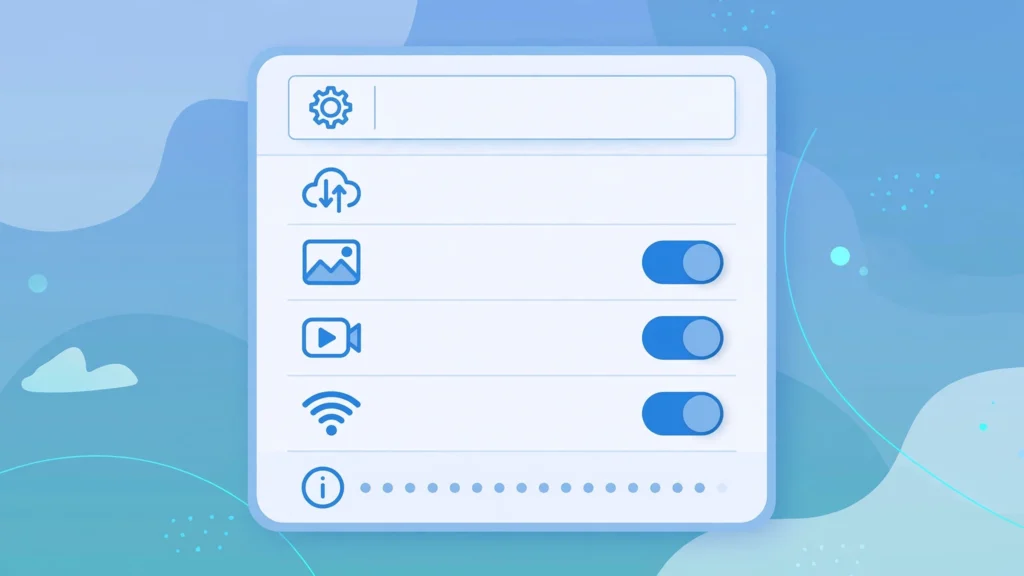
TeraBox Backup Settings Explained
| Setting | What It Does | Recommended |
|---|---|---|
| Auto Backup | Automatically uploads new photos/videos to the cloud | ON |
| Backup Photos | Includes photos in auto-backup | ON |
| Backup Videos | Includes videos in auto-backup | ON |
| Wi-Fi Only | Uploads only over Wi-Fi, saves mobile data | ON |
| Include Folders | Choose specific folders (Camera, Screenshots, Downloads) | Camera + key folders |
| Exclude Folders | Skip folders you don’t want backed up | Memes, temp folders |
TeraBox Backup Settings: Which Folders to Back Up?
Your camera roll is the obvious choice, but TeraBox lets you pick more:
- Camera/DCIM — your photos and videos (essential).
- Screenshots — useful, but they pile up fast.
- Downloads — back up only if you keep important files here.
- WhatsApp / messaging media folders — turn on if you receive photos you want to keep.
Skip folders full of memes, temporary images, or app cache — they eat into your 1TB for no reason.

What Happens When Your 1TB Is Full?
TeraBox gives you a generous 1TB of free cloud storage, but even that fills up eventually if you back up everything. When auto-backup stops because space ran out, don’t panic — check your storage, delete duplicates, and reorganize. We covered 12 proven methods in our guide on what to do when your TeraBox storage is full so your backups never stop.
TeraBox Backup Settings: Auto-Backup vs Manual Upload
| Feature | Auto-Backup | Manual Upload |
|---|---|---|
| Effort | Zero — runs automatically | You upload each file yourself |
| Speed | Uploads in the background | Instant when you choose |
| Missed files | None — catches everything new | Easy to forget |
| Best for | Photos, videos, daily memories | One-off documents and large files |
For sharing those backed-up files with others, TeraBox makes it simple — see our guide on how to share large files with TeraBox and the walkthrough for sharing large video files.
Frequently Asked Questions
1. Where do I find TeraBox backup settings?
Open the TeraBox app, go to your profile → Settings → Auto Backup. All backup options live there on both Android and iOS.
2. Does TeraBox auto-backup use mobile data?
Only if you allow it. Turn on the “Wi-Fi only” option in backup settings and uploads will wait until you’re on Wi-Fi.
3. Can I back up specific folders only?
Yes. In Auto Backup settings, use the folder picker to include folders like Camera or Screenshots and exclude ones you don’t need.
4. Will auto-backup drain my battery?
Impact is minimal. TeraBox uploads in the background and pauses when your battery is low. Keep the app updated for the best efficiency.
5. Is TeraBox backup free?
Yes — auto-backup works on the free plan with 1TB of cloud storage. See how the plans compare in our TeraBox free vs premium guide.
6. How is TeraBox backup different from Google Drive?
TeraBox gives you 1TB free versus Google Drive’s 15GB shared quota, which makes it far better for full photo and video libraries. Read our full TeraBox vs Google Drive comparison.
Conclusion
TeraBox backup settings take five minutes to configure and then quietly protect every photo and video you create. Turn on auto-backup, pick your folders, enable Wi-Fi-only uploads, and your 1TB of free cloud storage does the rest.
For an overview of everything the app offers, see our TeraBox Mod APK features guide. For more TeraBox guides and tutorials, visit teraboxxmodapk.in.