TeraBox File Organization (2026): How to Organize Your 1TB Cloud Storage

TeraBox file organization is the difference between a cloud drive that saves you time and one that wastes it. With 1024GB of free storage, it is easy to upload thousands of photos, videos and documents and just as easy to lose track of them. A simple folder system, clear file names and a regular cleanup routine turn that huge space into a library where every file is easy to find.
This guide shows you a practical, step-by-step system for organizing TeraBox on your phone, the web and desktop. No complicated tools, just official TeraBox features used well. Follow this TeraBox file organization system and every file will have a home.
Key Takeaways
- TeraBox file organization starts with a shallow folder system: Photos, Videos, Documents, Projects and Shared, just two or three levels deep.
- Consistent names are the backbone of TeraBox file organization: start with the date, then plain words, so search finds any file in seconds.
- Sort at upload time, because filing later is how a tidy drive turns messy again.
- A short monthly cleanup keeps TeraBox file organization working: delete duplicates, archive finished projects and rename stray files.
Why TeraBox File Organization Matters
A disorganized drive costs you time every day. You re-download files you already have, you upload duplicates, and you hesitate before deleting anything because you are not sure what is important. With 1TB of space, that mess grows quietly until even searching feels slow.
Good organization fixes four problems at once: you find files in seconds, you stop creating duplicates, you know exactly what to back up, and cleanup becomes a five-minute job instead of a weekend project. It also makes sharing safer, when your folders are tidy, you share the right folder instead of a mixed-up dump of personal files.
Step 1: Build a Simple Folder Structure
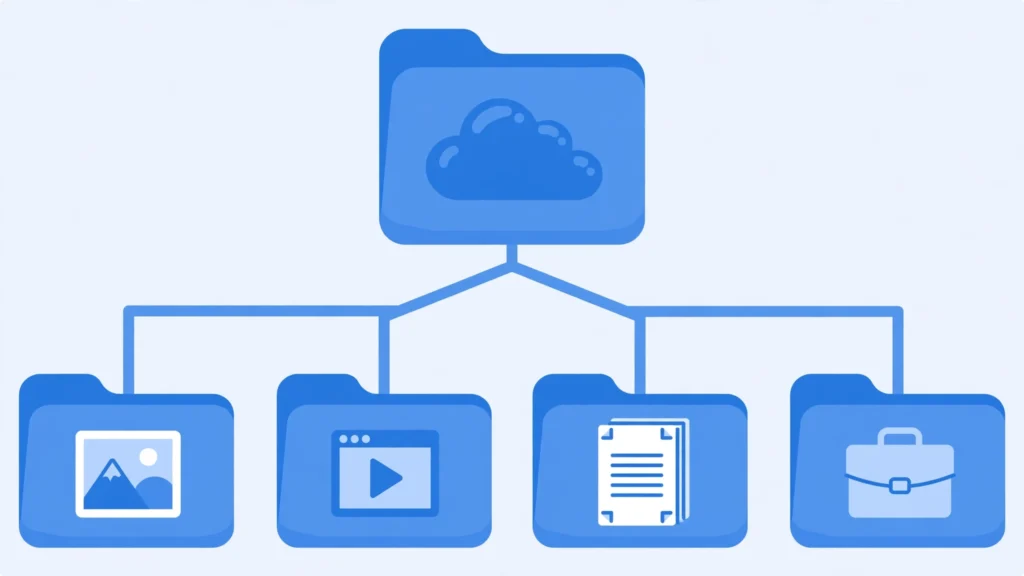
Start with a small set of top-level folders based on how you actually live, not on file types alone. A structure that works for most people looks like this:
- Photos, with subfolders by year, then by event (for example Photos / 2026 / Family Trip)
- Videos, split into Personal and Work or Study
- Documents, with subfolders for ID and Official, Work, Study and Finance
- Projects, one folder per active project, archived when the project ends
- Shared, files you regularly share with family, friends or colleagues
Keep the tree shallow: two or three levels deep is enough. Deeper nesting means more clicks every time you save or find something. If a folder grows past a few hundred files, split it by year or by topic — never let one folder hold everything.
Step 2: Name Files So Search Can Find Them
TeraBox search works on file names and keywords, so a good name is half of good organization. Use a consistent pattern: date first, then a short description, then a version if needed. For example, 2026-10-24-family-trip-beach.jpg beats IMG_4821.jpg every time.
Three naming rules are enough: always start with the date (YYYY-MM-DD) for photos and documents, use plain words separated by hyphens instead of spaces or random characters, and never leave the camera’s default name on a file you plan to keep. Rename files when you upload them, not later — later never comes.
Step 3: Sort as You Upload, Not Later
The single most effective habit is sorting at upload time. Before you hit upload, decide which folder the file belongs in. Auto-backup is convenient, but backed-up camera photos still need a home: once a week, move new photos from the backup folder into your Photos structure by year and event.
On the web version, you can create folders and move files between them easily, and on mobile the same moves take only a few taps. If you also use the desktop app, the same folders sync everywhere, so organizing once organizes every device. For a full walkthrough of the web tools, see our TeraBox web version guide.
Step 4: Use Search and AI-Powered Search Properly
When you cannot remember where a file is, search is faster than browsing. Search by the keywords in the file name first, and keep names consistent so those keywords actually match. TeraBox also offers AI-powered search that understands more than exact filenames, helping you locate content across a large library without digging through folder after folder.
Two search habits pay off: search before you re-upload anything (most lost files are already in the drive under a different name), and if a search fails, check the Recycle Bin and your recent uploads before assuming the file is gone. Both habits work best when TeraBox file organization is consistent, so names and folders match how you actually search.

Step 5: Clean Up on a Schedule
Organization decays without maintenance, so put a short cleanup on your calendar. Once a month, do these five things: delete exact duplicates, empty files you no longer need from the Recycle Bin, archive finished projects out of your active folders, rename the handful of files that slipped through with camera-default names, and check your storage usage to see which folders grew the most. That routine is what keeps TeraBox file organization from sliding back into chaos.
Deleted files in TeraBox are not gone immediately — they sit in the Recycle Bin, where free accounts keep them for 10 days and Premium accounts for 30 days. That window is your safety net, but it is not a storage plan: if a deleted file matters, restore it promptly. Our TeraBox file recovery guide explains the restore steps in detail.
Step 6: Keep Documents Separate and Scannable
Documents deserve their own system because you need them urgently and exactly, an ID copy, a bill, a certificate. Keep an ID and Official folder that you never mix with general downloads, and use TeraBox document scanning and PDF tools to turn paper into clean, searchable files. Scanned documents with clear names (for example 2026-passport-scan.pdf) are far easier to find than photos of paper buried in your camera roll.
TeraBox File Organization: Before vs After
| Area | Disorganized Drive | Organized Drive |
|---|---|---|
| Finding a file | Browse folder after folder, or give up | Search by name and open it in seconds |
| Duplicates | Same photo uploaded three times | One copy, in one place |
| Sharing | Sharing a folder full of unrelated files | Sharing exactly the right folder |
| Cleanup | A scary, hours-long job | A five-minute monthly routine |
| New uploads | Dumped in one place, sorted later | Filed in the right folder at upload time |
TeraBox File Organization Mistakes to Avoid
The most common mistake is creating too many folders — one per tiny topic — which is just as hard to search as one giant folder. Another is keeping everything just in case: if you have not opened a file in two years and it is not an official document or a memory, archive it or delete it. Finally, do not use your cloud drive as a dumping ground for app downloads and installers; those belong on your device, not in your organized library. Each of these mistakes quietly breaks TeraBox file organization, so avoid all three.
A tidy drive also pairs well with smart backup habits. If your backup settings are still on defaults, read our TeraBox backup settings guide so auto-backup feeds your folder system instead of fighting it. And if your drive ever feels full despite organizing, our storage-full solutions guide shows how to free space without losing anything important.
FAQs
What is the best folder structure for TeraBox?
Start with a few top-level folders — Photos, Videos, Documents, Projects and Shared — then split each by year or topic. Keep the tree two to three levels deep so every file is only a couple of clicks away. That shallow structure is the core of good TeraBox file organization.
How do I find a file quickly in TeraBox?
Use search with the keywords from the file name. Consistent, descriptive names (date first, then a short description) make search work far better than browsing through folders.
Does TeraBox have AI-powered search?
Yes. TeraBox offers AI-powered search that helps you locate files across a large library, alongside standard name and keyword search. It is especially useful once your drive holds thousands of files.
Can I move files between folders in TeraBox?
Yes. You can create folders and move files between them on the mobile app, the web version and the desktop app, and the changes sync across your devices.
How long do deleted files stay in the TeraBox Recycle Bin?
Free accounts keep deleted files for 10 days and Premium accounts for 30 days. Restore anything important within that window, because after it the file is permanently removed.
How often should I clean up my TeraBox drive?
A short monthly cleanup — deleting duplicates, archiving finished projects and renaming stray files — is enough to keep a 1TB drive organized. A full reorganization is rarely needed if the monthly habit sticks. Stick with it, and TeraBox file organization stays a five-minute job instead of a weekend project.
Conclusion
TeraBox file organization is not a one-time project; it is a small set of habits. Build a shallow folder structure, name files with dates and plain words, sort at upload time, search before re-uploading, and clean up once a month. Do that, and your 1TB of free storage stops being a warehouse and starts being a library you can actually use.
For the full picture of what TeraBox offers, including storage plans and the free-versus-Premium comparison, see our TeraBox free vs Premium guide and the TeraBox Mod APK overview page. And if you share large files often, our guide to sharing large files with TeraBox shows how to share your newly organized folders safely. Good TeraBox file organization also makes sharing safer, because you share exactly the right folder instead of a messy drive. For official app details and plan information, see the official TeraBox website.